Finished goods carry their own recipe and routing. Those feed a finite-capacity schedule with a live Gantt, an auto-scheduler that tells you on-time or late, and a cost engine that prices every part and tells you how much to trust the number.
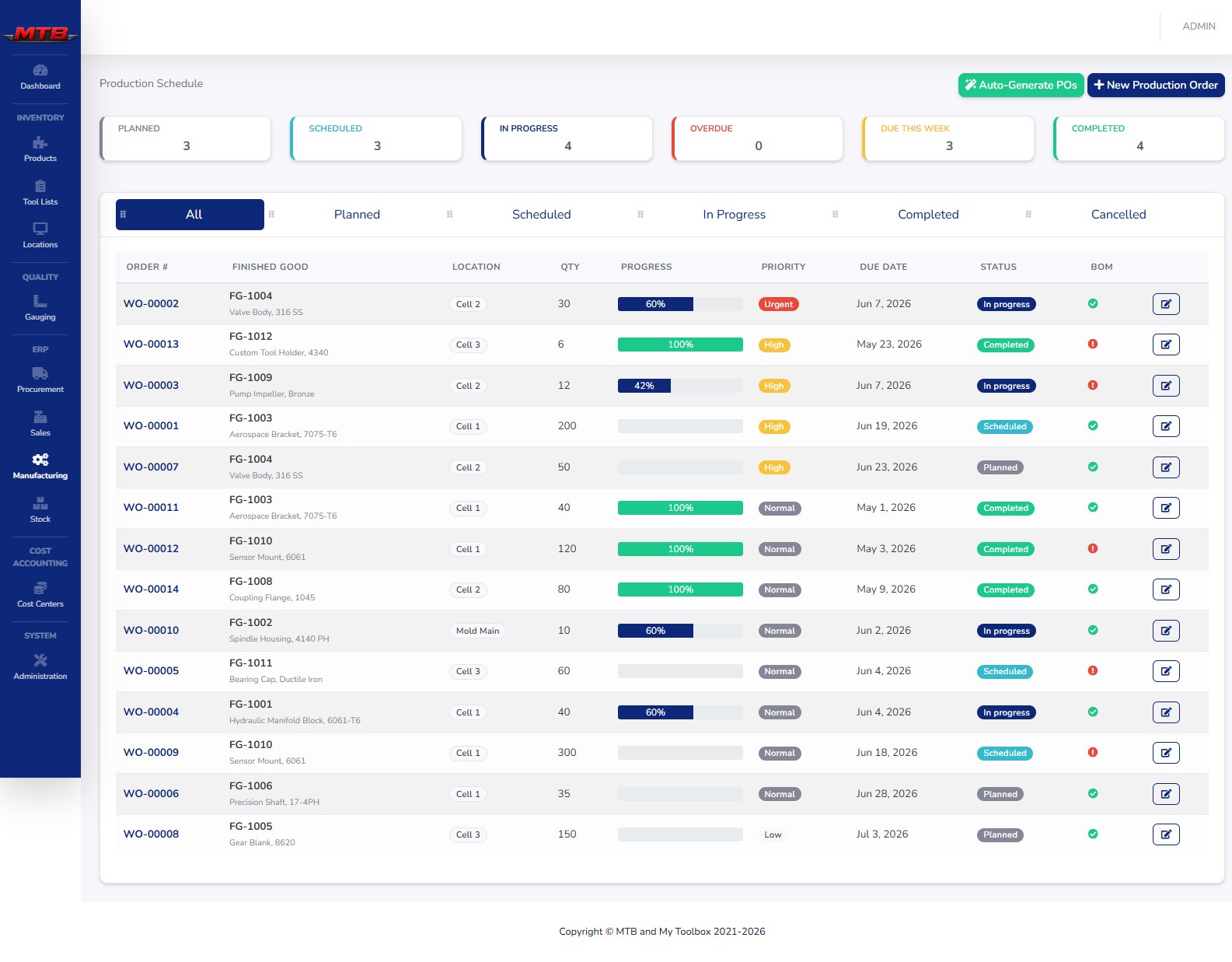
Define the part once. Its BOM, routing and capacity drive everything downstream — the schedule, the floor, and the true cost.
Define the part
The recipe
The operations
Auto-plan & Gantt
Priced with confidence
Finish the day clean
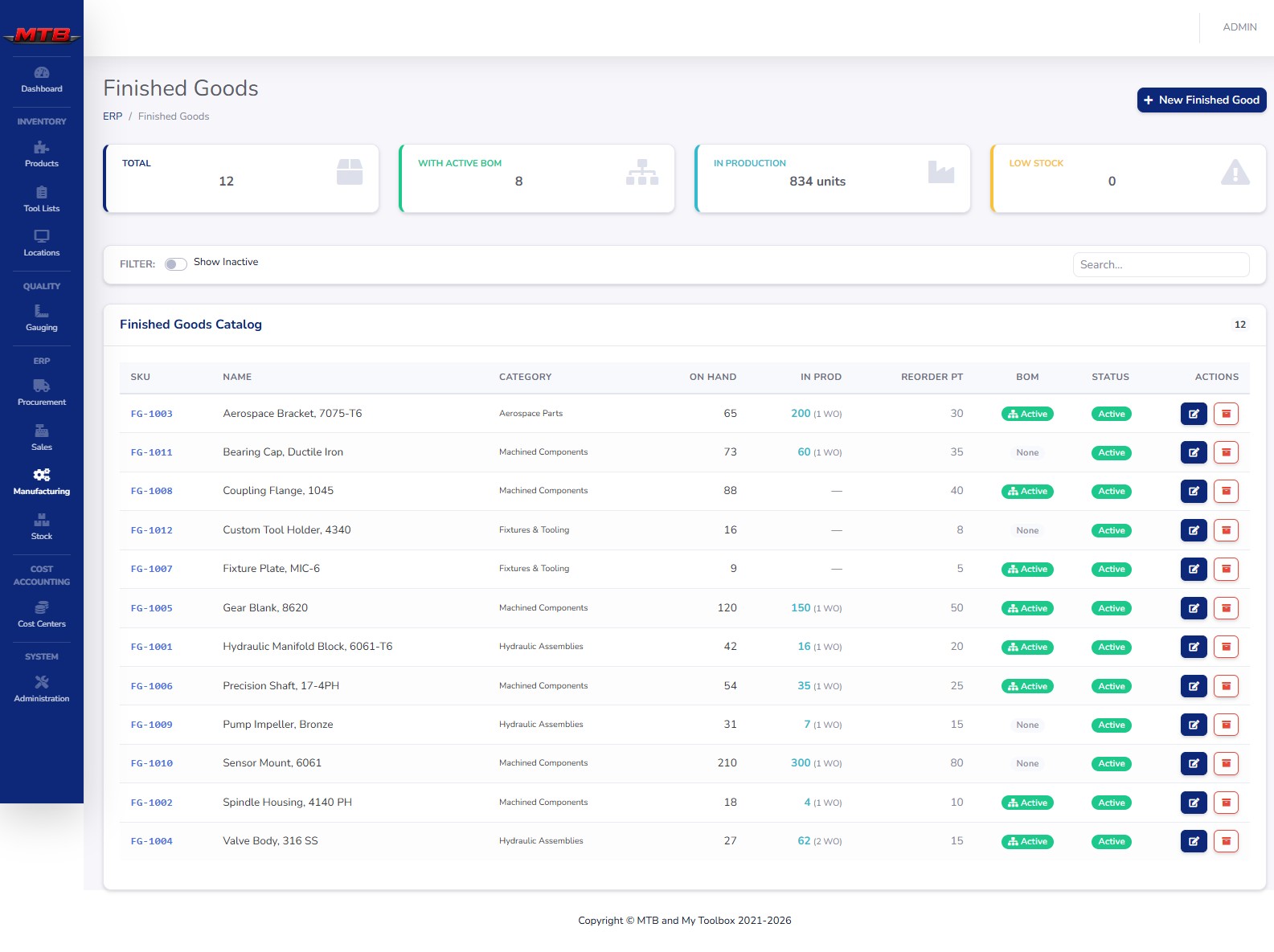
A finished good is something your shop manufactures and sells — separate from the raw materials and consumables in regular inventory. Each row knows its stock, its recipe and its readiness to run.
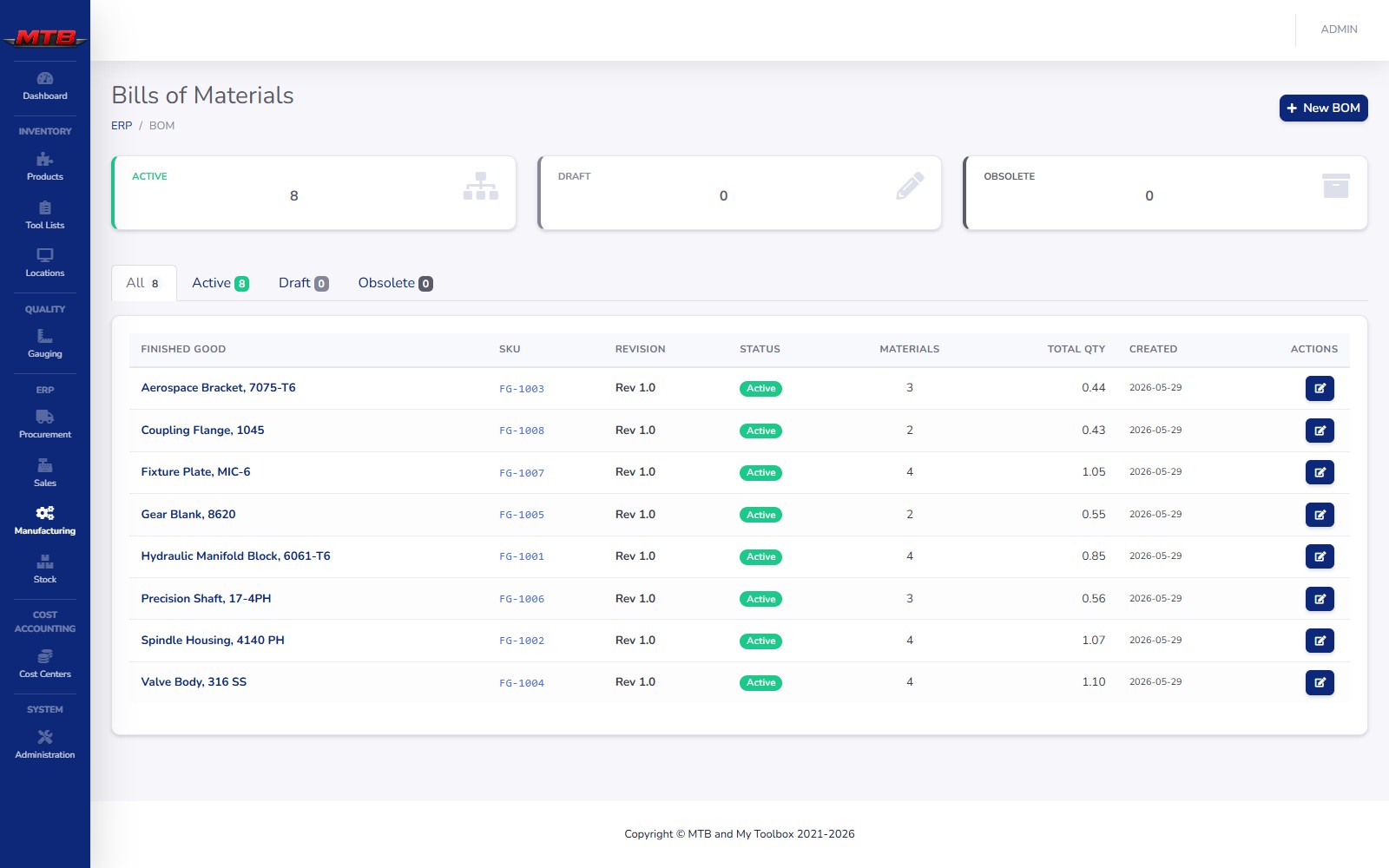
Which raw materials a finished good uses, and how much of each. Production explodes the BOM for material requirements; the cost engine uses it to price the materials in a part.
A BOM says what goes into a part. A routing says how — the ordered steps through your machines. Routings drive both the auto-scheduler and the labor-and-machine line of part cost.
CNC Mill, Deburr, Inspect — each defined a single time. Tick the capable machines that can perform it and optional tooling consumed, whose cost-per-part folds into part cost. No capable machine throws a red warning — the scheduler would have nowhere to route it.
Pick a finished good and add steps: a Seq for order, the Operation, the run time per unit, any setup hours, and how many workers the step needs. Capable machines and tooling come along from the operation automatically.
Good run times let the auto-scheduler predict whether orders finish on time, and let the cost engine price labor and machine time from routing data instead of rough estimates. One input, two payoffs.
A production order is an instruction to build a quantity of a finished good by a date. They move through a clean status pipeline, and the floor always knows what runs next.
Scheduling answers who runs what, on which machine, on which day. The auto-scheduler routes each order through its operations and capable machines on finite capacity — nothing is saved until you apply it.
Machine downtime from the CMMS hatches straight onto the Gantt, and labor hours flow in from the workforce module.
The cost engine computes a live cost for every active finished good and rates its own reliability. Confidence climbs as estimates are replaced with real recorded data.
Mostly estimates
Some real data
Routing-backed
Mostly measured
Ready to standardize
"Open a part and the cost breaks into six components, each tagged with where its number came from — measured, from routing, estimated, or no data."Materials · Labor · Machine / Station · Tooling · Maintenance & Consumables · Scrap / Yield Loss
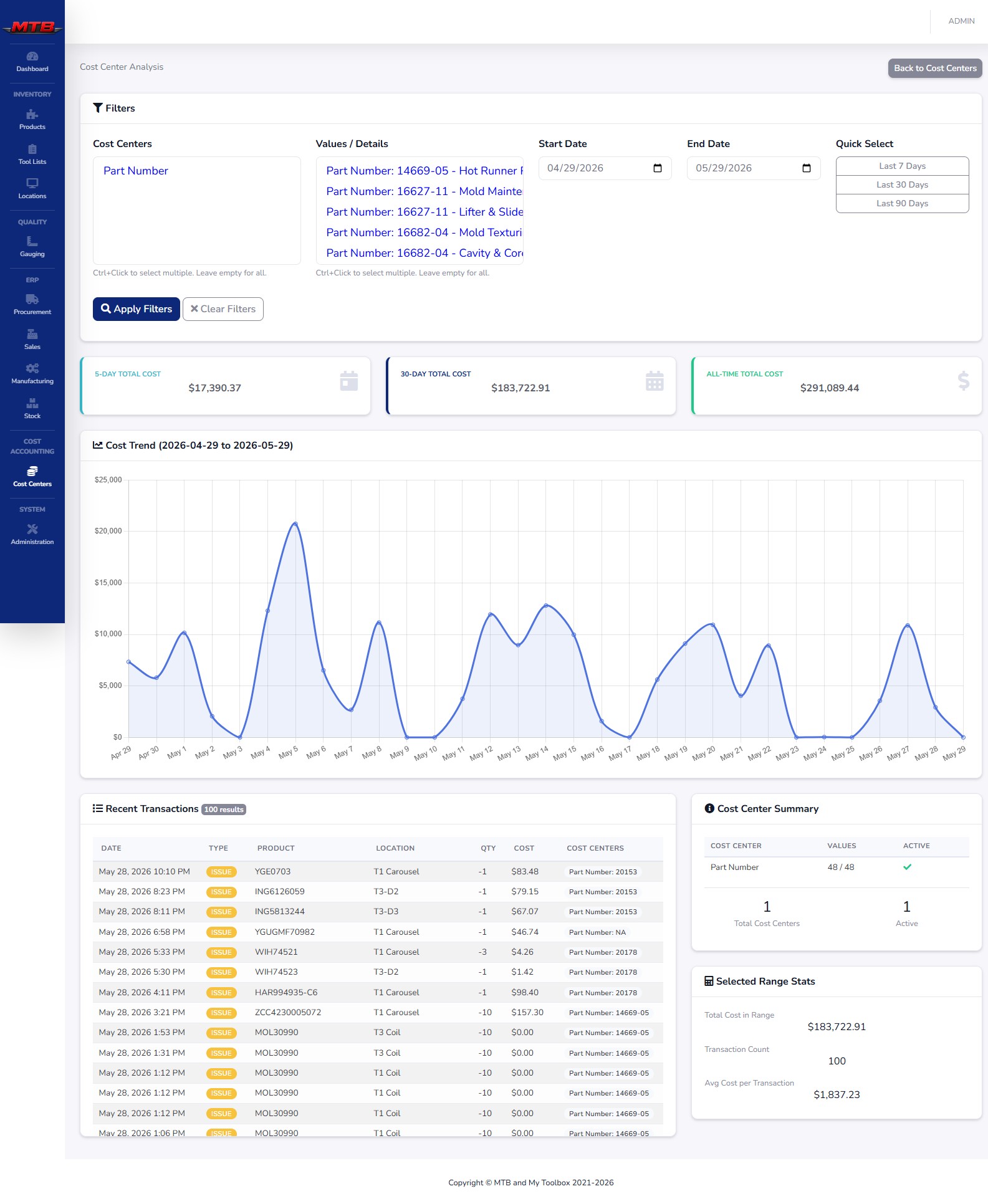
A Time per part table compares estimated machine and labor hours against actuals, and a Level up the confidence list spells out the exact next steps to a better number.
Costing pulls from every module: routing, logged labor from Workforce, recorded scrap, and consumable spend from Maintenance.
Costing, forecasting and maintenance all depend on daily data. The Close-Out page scans the day and surfaces everything that should have been recorded but was not — so the gaps never pile up silently.
Planned assignments with no actual hours. Type the hours and click Log.
Orders in progress with no daily entry. Jump straight to Record Daily Production.
Maintenance work orders worked with no hours logged.
Machine meters awaiting a reading; record it inline.
PMs due with no work order yet — one-click Generate work orders.
Spare parts under reorder point, with a button to draft purchase orders.
Every row has a Nothing to log button for days when an item genuinely has nothing to report. Work each section until the status chip reads All clear — and the day is closed with confidence.
Confirmed sales orders generate production orders; BOM shortfalls draft purchase orders through one-click Auto-PO.
Sales & front counterMachine downtime and PMs feed the schedule and the Close-Out; consumable spend folds into part cost.
Maintenance & CMMSLogged worker hours turn estimated labor cost into measured cost, and feed scheduling utilization.
Workforce & laborBOM lines are real crib products, and finished goods can bridge into IMS to vend or hold on consignment.
Inventory & vendingScrap reasons and Heat numbers recorded on the floor carry through to traceability and quality.
Quality & complianceCost, margin, throughput and on-time performance roll up into reports and the report builder.
Reporting & analyticsWe'll build the BOM and routing, auto-schedule it onto real capacity, and watch the cost climb from Rough to Locked — in one sitting, on real data.
 MyToolBox