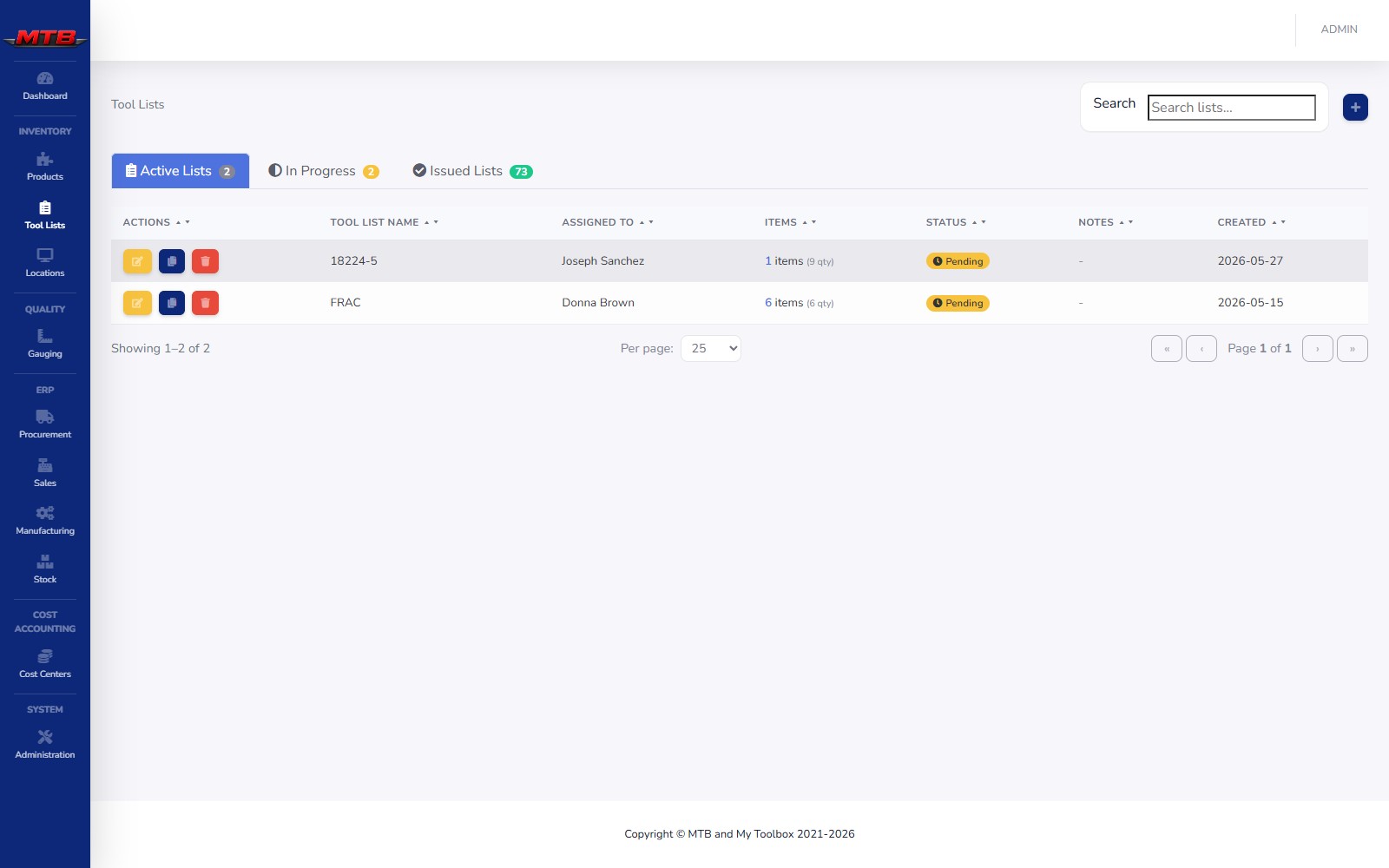
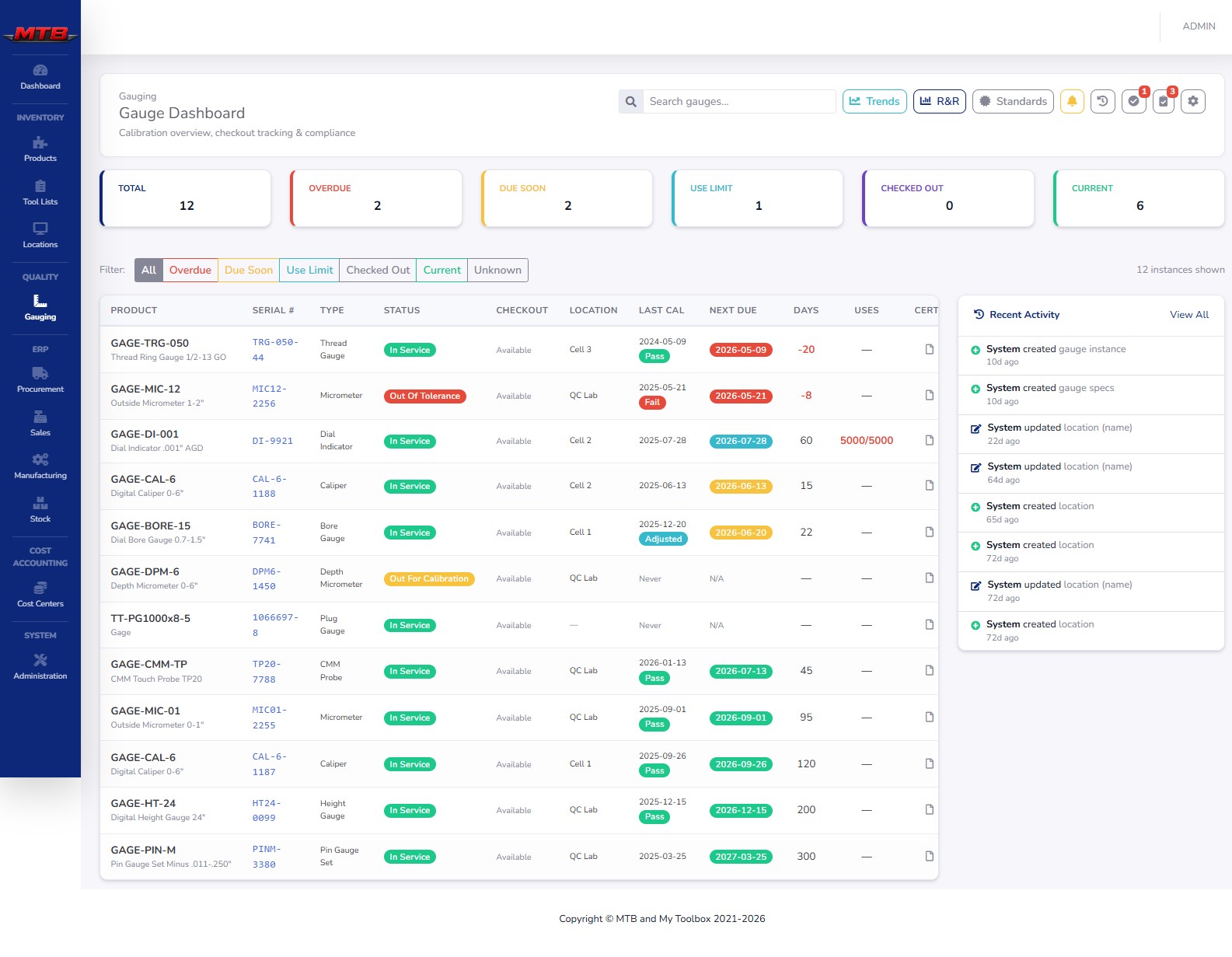
If the box is just a box, this is what makes it worth bolting to the wall. STS VEND is the touchscreen app that runs on every machine — badge in, find a product, pick a bin, take what you need. One app drives any kind of machine, enforces who can take what, captures the job it's going to, and writes one clean transaction every time. It keeps working when the network drops, and catches the backend up the moment it's back.
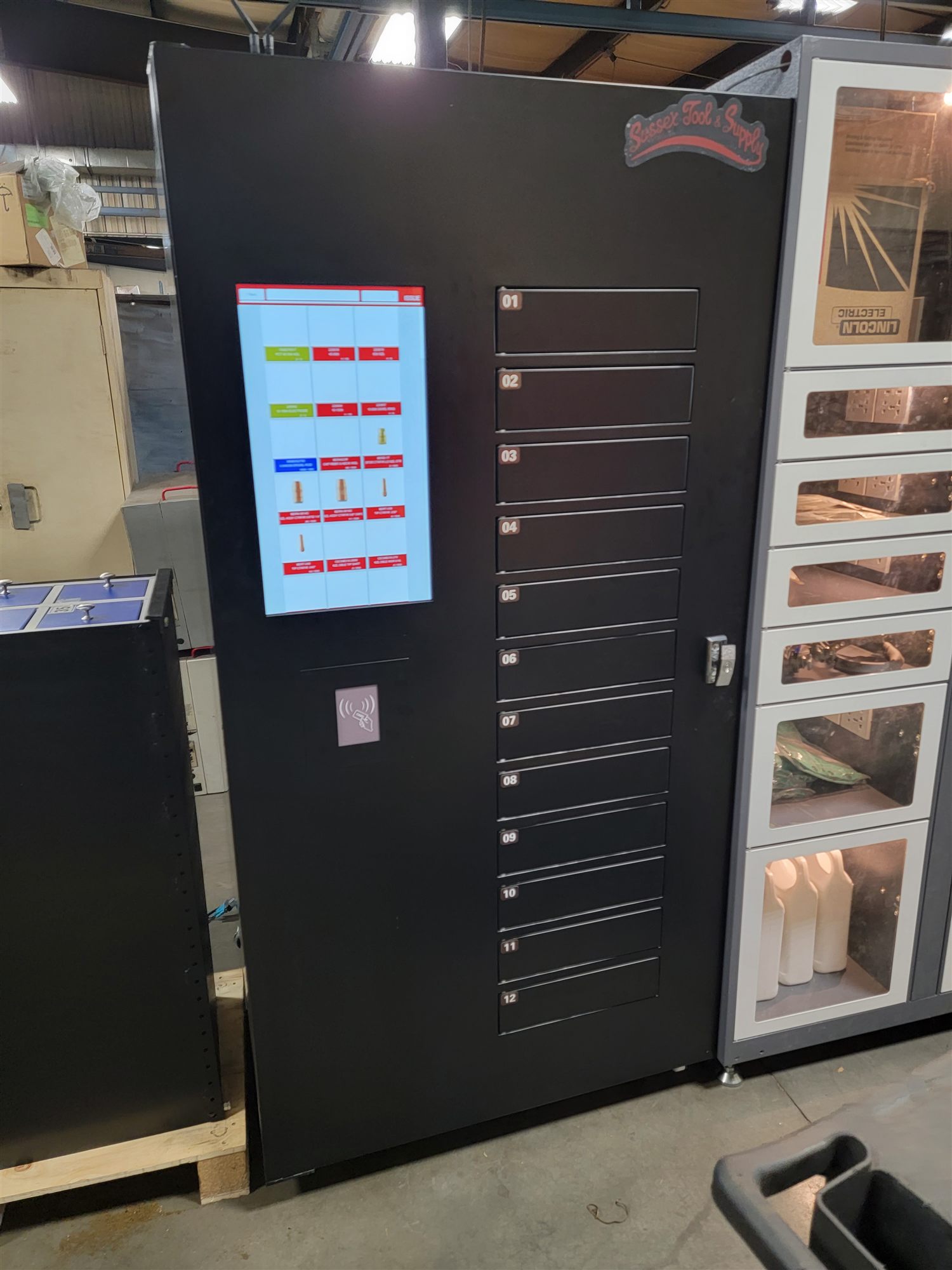
Every transaction follows the same path, whatever the hardware behind it. Search or scan, pick a bin, key the quantity — the app checks the rules, captures the job, then tells the machine to open, turn or release.
Tap a badge, key a password, or scan a barcode. The app loads your role and limits.
Search by name or category, or scan the product barcode to jump straight to it.
The screen shows every bin holding that item with live on-hand counts. Choose one.
Key the amount on the on-screen number pad. Send-for-Calibration locks this to one.
Per-user privileges are checked live — capped to N per 7 days, say — and the job code is captured.
Door opens, coil turns, drawer or cells release. The transaction logs and inventory updates.
Every touch resolves to one of five transactions, colour-coded on screen so there's no guessing. Each one writes the same clean record back to the crib.
Take stock out — the everyday vend. Counts down on-hand and attributes it to the user and job.
Refill a bin. Restockers replenish at the machine and the on-hand count climbs in real time.
Physical count correction. The door opens for access, then you key the true total to true up.
Put an item back. Unused stock or a checked-out tool goes home and the count is restored.
Return a gauge to the cal loop. Quantity is locked to one, and the gauge leaves the floor by serial.
Gauges and the calibration loop are managed on the Quality side — the machine is just where a gauge gets checked out and sent back.
Match the login to the site. A high-traffic crib wants a one-tap badge; a low-risk spot can drop passwords entirely. An auto-logout timer clears the session after a configurable idle window.
Tap your badge on a keyboard-wedge reader and you're in. Fastest path for a busy crib — no typing, the badge value authenticates against the backend and re-arms for the next swipe.
Classic credentials, hashed before they leave the screen. Passwords can be switched off entirely for low-risk sites where a badge or barcode is enough.
Scan an ID barcode to log in. Works with the same wedge scanners you already use to scan products on the floor.
Whichever method, the app loads your role, area and live product limits the instant you're recognised — so the rules are in force before your first tap.
A coil that turns is the easy part. The value is everything the app does around the dispense — kit issuing, gauge control, live limits, cost capture, and a queue that never loses a transaction.
Issue a whole kit without remembering its contents. The app walks the operator through a tool list one item at a time — find it, open the bin, confirm — so a job-ready set goes out complete and every line is logged to the user.
Gauges aren't consumables — they're serialised assets with a calibration clock. The machine checks a gauge out to a named user and, when it's due, takes it back with a Send-for-Calibration that pulls it from service and into the cal loop.
Privileges enforced at the point of issue — capped quantities over a rolling window, by user and product. The cap is checked before the door opens, not after.
The job, work order or cost center is captured at the machine, so spend lands on the right charge code the moment the item leaves the bin. Feeds cost tracking.
Lose the network and the machine keeps dispensing. Transactions cache to device storage and sync back to the backend the moment the connection returns — nothing is dropped.
A Windows touchscreen, the app in kiosk mode, and a thin link back to the crib. That's the whole footprint.
Runs full-screen on a standard Windows touchscreen, in portrait or landscape — embedded in a cabinet or mounted beside a lineup of them.
A single touchscreen can drive several cabinets at once — serial machines on their COM ports, bridge machines by host and port — under one login.
Talks to the StockManager backend over a simple HTTP API, caches to device storage, and syncs queued transactions when the connection returns.
Pick the right boxes for your shop, then let one app run all of them. We'll show you the kiosk, the backend and the loop between them.
 MyToolBox